Gitflow Lab
This lab will walk you through our workflow, from creating branches through merging a pull request.
The repository is located at: https://github.com/SteelCityRoboticsAlliance/GitflowCodelab
Part One
1. Clone the repository
The recommended location is:
C:\Users\<user>\Documents\git\scra\<project_name> on Windows~/git/scra/<project_name> on Linux / MacTo clone a repository, click File -> New -> Project from Version Control. Paste the URL you copied from github, and select a destination directory.
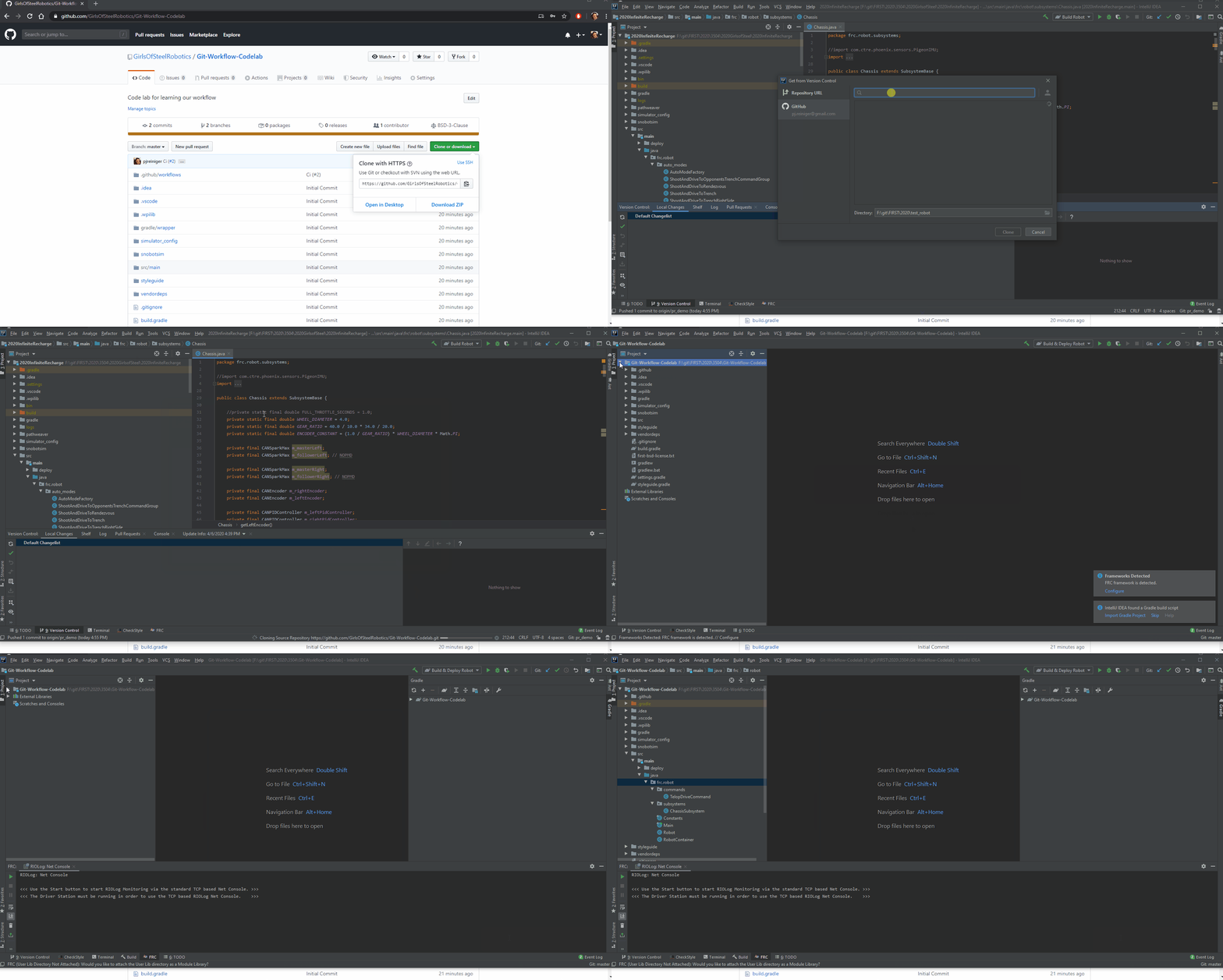
Content 233
2. Checkout a new branch
IMPORTANT: For this code lab, you will base your branch off of something other than master. This is to force a merge conflict later in the lab. 99.9% of the time you are developing real code from the robot, you would start off of master
Base the branch off of origin/codelab_start, and name it something like <your name>_codelab_part1
You will see your currently selected branc on the bottom right of the IDE. If you click that, you can also switch branches, or create
new ones. Normally, you would “Create New Branch” off of origin/main, but in this case, base it off of origin/codelab_start.
Select your new name, and notice that the branch name in the bottom right has changed.
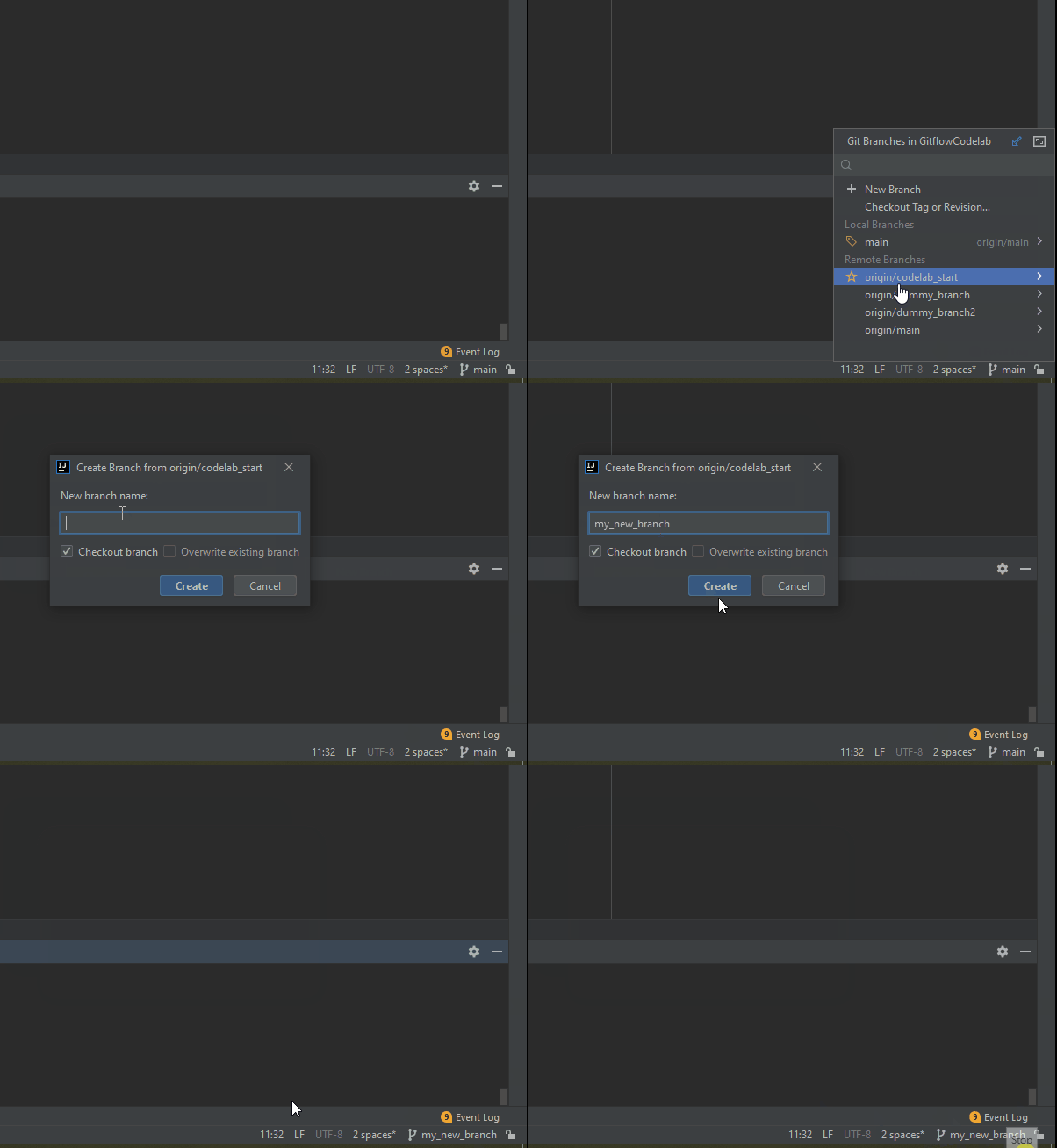
TODO
3. Create a new Subsystem
Create it with the name <your name>Codelab<year>Part1, ex. PJCodelab2020Part1
4. Put a print line in the constructor
Something along the line of System.out.println("<name> says hello world in <year> part 1");
5. Create your command
In RobotContainer, declare your subsystem.
6. Run Simulator
In this step, we will run the simulator and check that your name was printed out. You can immediatly close out the Simulation Gui when it loads and look to see if your name got printed out. You might have to scroll up in the console logs to see the printouts
From the run configurations area, select the Simulate task, and hit the green button to run it

TODO
7. Commit, Push, Create PR
You will notice that the you cannot merge your branch, because there is a conflict
On the left side of the IDE you will see a “Commits” tab. From here, you can select all the changes you want to commit, write a commit message, then click the “Commit and Push” button

Content 233
8. Fix conflict, re-push
After the push, add a SCRA mentor as a reviewer, and ping them in Slack to review and approve the PR
TODO
TODO
Part Two
Part two is meant to make sure you run the cleanup process correctly, and can create your next feature branch.
Re-run steps 1-6, but replace any references to “part1” with “part2”